Playwright MCP Server Configuration Reference for QA Teams
Configure Playwright MCP for QA with documented CLI flags, environment variables, JSON schema, capabilities, browsers, timeouts, output, and network controls.
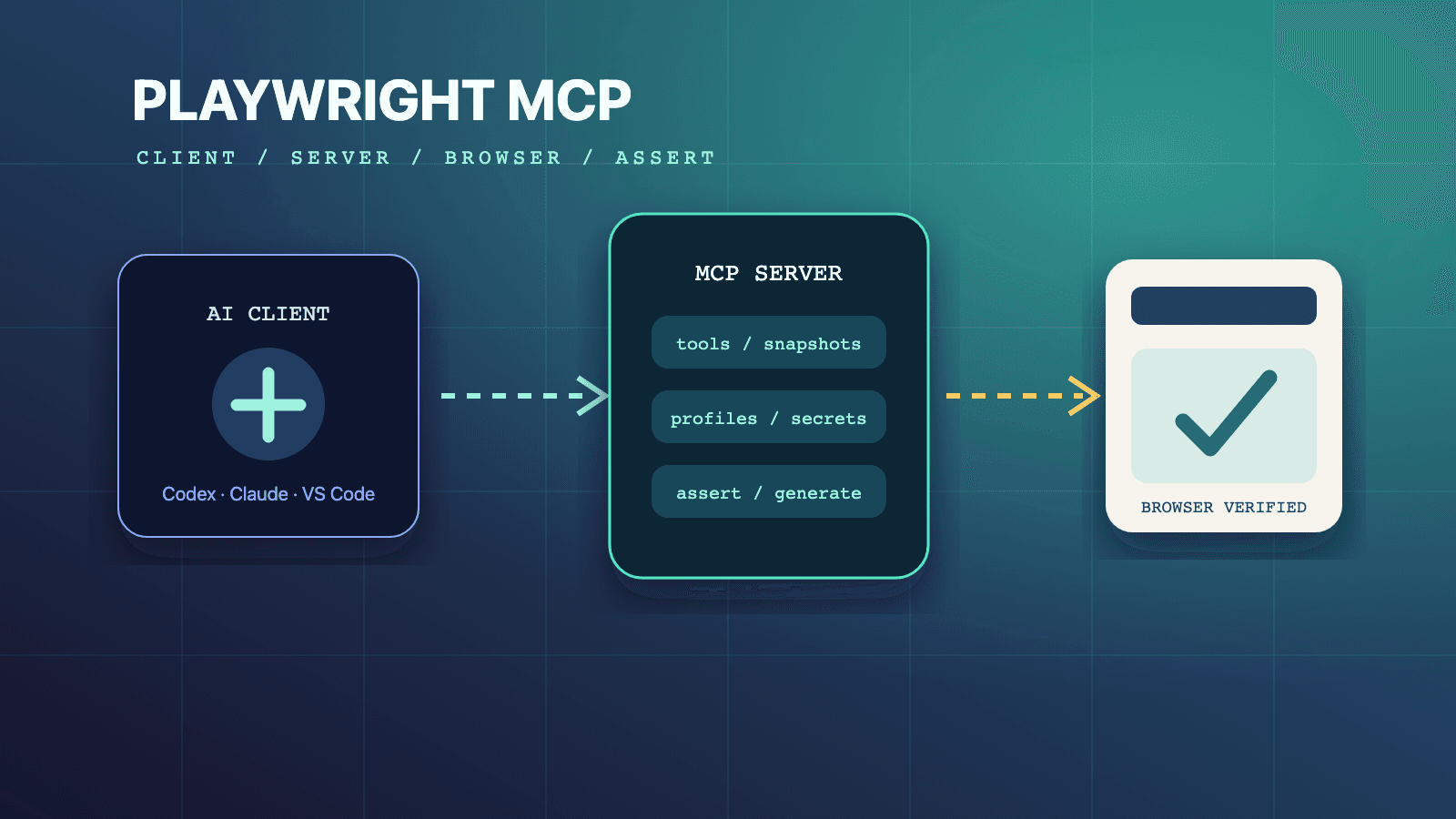
Playwright MCP configuration has three supported layers: arguments in the MCP client's args array, PLAYWRIGHT_MCP_* environment variables, and an advanced JSON file passed with --config. Start with npx @playwright/mcp@latest, add only the browser, profile, capability, timeout, output, and network settings your QA job needs, then verify the resolved setup. Headed Chrome, a persistent profile, core tools, 5-second actions, and 60-second navigation are the important documented defaults to review before a team standardizes its configuration.
For the complete browser workflow, begin with the Playwright MCP browser automation guide. The adjacent decisions are covered in the testing capability guide, profile mode guide, and security guide. Teams building reusable agent instructions can browse /skills, use the author-qualified Playwright CLI skill, and compare the MCP workflow with the existing Playwright test agents in Claude Code article.
Build a Configuration from the Job Backward
A useful configuration begins with a test job, not with a copy of every available switch. A developer watching an exploratory session may want headed Chrome and a persistent login. A CI-like investigation may want headless Chromium, an isolated profile, explicit timeouts, a fixed viewport, and a dedicated artifact directory. A form-validation agent may need the testing capability but not coordinate-based vision, PDF export, storage mutation, or DevTools recording.
The official Playwright MCP configuration reference separates browser launch, server transport, state, network, output, and code-generation controls. The capability reference adds another important rule: core browser tools are always enabled, while specialized groups are opt-in. That makes a short configuration preferable to an indiscriminate "enable everything" setup. Every extra capability adds tool schemas to the model's context and expands what the agent can ask the server to do.
Write down these six decisions before choosing syntax:
- Which browser or channel represents the target: Chrome, Firefox, WebKit, or Edge?
- Must a human see the browser, or should it run headless?
- Should authentication survive server restarts, start clean, or come from an existing browser tab?
- Which non-core capabilities are required for the task?
- Where should screenshots, logs, videos, and saved sessions go?
- Which origins, files, permissions, proxy, and transport boundaries apply?
Those answers produce a configuration that another QA engineer can review. They also make failures diagnosable. If one giant configuration changes profile mode, browser engine, proxy, origin policy, and timeout together, a failure provides little evidence about which choice caused it.
Choose the Right Configuration Surface
Playwright exposes the same major controls through several surfaces, but the surfaces solve different operational problems.
| Surface | Best use | Example | Review concern |
|---|---|---|---|
MCP client args | Small, visible, client-specific setup | --headless, --browser=firefox | Long arrays become hard to compare and explain |
MCP client env | Deployment-supplied values or client config that favors environment variables | PLAYWRIGHT_MCP_HEADLESS=true | Secret and environment handling depends on the MCP client |
| Playwright MCP JSON file | Structured browser, server, timeout, network, and capability policy | --config ./playwright-mcp.config.json | The file path and file contents must travel together |
| Server plus URL client entry | A separately managed local or remote HTTP process | http://localhost:8931/mcp | Binding, authorization, and network exposure need explicit review |
Use one dominant surface for team policy. A compact args array is easy to paste into an MCP client. A JSON file is easier to review once nested settings such as contextOptions, network.allowedOrigins, or separate action, navigation, and expectation timeouts appear. Environment variables are useful when the execution environment owns a value, but they are less self-explanatory in a code review.
The official docs provide both CLI option names and corresponding environment variable names. They do not make an unlabeled mixture easier to operate. If a team combines a config file, arguments, and environment values, document why each layer exists and verify the effective result instead of relying on memory about precedence.
Start with a Minimal MCP Client Entry
The standard server entry has only a command and package argument:
{
  "mcpServers": {
    "playwright": {
      "command": "npx",
      "args": ["@playwright/mcp@latest"]
    }
  }
}
That baseline launches the documented default browser in headed mode and exposes core tools. It is appropriate for confirming that the MCP client can start the package, list tools, navigate, snapshot, and interact. Do not add a proxy, custom executable, storage state, unrestricted file access, or HTTP listener merely to prove installation.
For a repeatable headless QA session, extend the same entry deliberately:
{
  "mcpServers": {
    "playwright": {
      "command": "npx",
      "args": [
        "@playwright/mcp@latest",
        "--headless",
        "--browser=firefox",
        "--viewport-size=1440x900",
        "--caps=testing",
        "--timeout-action=7000",
        "--timeout-navigation=60000",
        "--console-level=warning",
        "--output-dir=./artifacts/playwright-mcp"
      ]
    }
  }
}
Every setting in this example has a documented role. --headless changes visibility, --browser=firefox changes the engine, --viewport-size fixes the browser viewport, --caps=testing exposes assertion and locator-generation tools, the timeout flags bound actions and navigation separately, --console-level=warning filters returned console messages by severity, and --output-dir chooses where output files are saved.
This is a reference configuration, not a universal recommendation. If production users run Chrome, changing the smoke job to Firefox may reduce representativeness. If a test intentionally waits for a slow local build, seven seconds may be too short. If a human is reviewing an exploratory flow, removing --headless may be more useful than preserving unattended defaults.
Select Browser, Display, Device, and Viewport
The browser flag accepts chrome, firefox, webkit, or msedge in the current configuration options. Chrome is the documented default. The JSON config uses Playwright browser names chromium, firefox, or webkit, so do not blindly copy a CLI channel value into browser.browserName.
Playwright MCP is headed by default. That is useful locally because a QA engineer can observe navigation, consent screens, dialogs, and accidental actions. Add --headless when a display is unavailable or human observation is not part of the job. Headless does not automatically make a workflow isolated, restricted, or suitable for production exposure; it only changes how the browser is displayed.
Use --device="iPhone 15" when a named device profile is the real requirement. Use --viewport-size=1280x720 when only viewport dimensions need to be stable. A viewport is not a complete device profile: it does not by itself express every property bundled into device emulation. The current docs also expose --mobile for a generic mobile profile and state that it cannot be combined with --device. Pick one model rather than layering contradictory emulation settings.
Corporate and lab networks can use --proxy-server with --proxy-bypass. Treat the bypass list as routing configuration, not as a destination authorization policy. The separate origin controls are discussed in the security article because Playwright explicitly warns that those controls do not form a security boundary.
Enable Capabilities by Test Purpose
The default core capability covers navigation, snapshots, common interaction, form input, screenshots, console and network inspection, tabs, waiting, page evaluation, and browser closure. The current capability table documents these additional groups:
networkfor request routing, route inspection, unroute, and online/offline state.storagefor cookies, localStorage, sessionStorage, and storage-state save or restore.testingfor four focused verification tools and locator generation.visionfor coordinate-based mouse operations with a vision-capable model.pdffor PDF export.devtoolsfor tracing, video, chapter markers, and resuming paused execution.configfor resolved-configuration introspection throughbrowser_get_config.
Capabilities are comma-separated in --caps. A testing flow that also restores authentication can use --caps=testing,storage. A debugging flow can use --caps=devtools. Avoid enabling vision merely because screenshots exist: ordinary screenshots and accessibility snapshots are part of core operation, while the vision capability adds coordinate-driven mouse tools.
The config capability is particularly useful during rollout. Enable it temporarily, call browser_get_config, and compare the resolved values with the team's intended browser, profile, output, and network policy. This is stronger evidence than inspecting one file while an environment variable or client-specific argument may also be present.
Move Advanced Policy into a JSON File
Once nested values appear, use the documented --config entry point. The MCP client remains small:
{
  "mcpServers": {
    "playwright": {
      "command": "npx",
      "args": [
        "@playwright/mcp@latest",
        "--config",
        "./playwright-mcp.config.json"
      ]
    }
  }
}
The referenced file can express the same policy structurally:
{
  "browser": {
    "browserName": "chromium",
    "isolated": true,
    "launchOptions": {
      "headless": true
    },
    "contextOptions": {
      "viewport": {
        "width": 1440,
        "height": 900
      }
    }
  },
  "capabilities": ["core", "testing"],
  "outputDir": "./artifacts/playwright-mcp",
  "console": {
    "level": "warning"
  },
  "network": {
    "allowedOrigins": [
      "https://qa.example.com",
      "https://identity.example.com",
      "http://localhost:*"
    ]
  },
  "timeouts": {
    "action": 7000,
    "navigation": 60000,
    "expect": 5000
  },
  "testIdAttribute": "data-testid"
}
The JSON schema allows normal Playwright launchOptions and contextOptions, so it is the right surface for structured launch and context behavior. It also distinguishes three timeout categories. An action timeout bounds operations such as interactions, a navigation timeout covers page navigation, and an expectation timeout applies to testing assertions. Increasing all three to an arbitrarily large number hides whether the application, environment, or locator is actually unhealthy.
The origin entries in a config file are arrays. The CLI --allowed-origins and --blocked-origins forms use semicolon-separated origins. The documented config format supports a full origin such as https://example.com:8080 and a wildcard port such as http://localhost:*. Do not infer undocumented wildcard-host semantics.
Use Environment Variables without Hiding Intent
Every major CLI option in the official reference has a PLAYWRIGHT_MCP_* counterpart. An MCP client entry can supply values through its environment map when that client supports it:
{
  "mcpServers": {
    "playwright": {
      "command": "npx",
      "args": ["@playwright/mcp@latest"],
      "env": {
        "PLAYWRIGHT_MCP_BROWSER": "webkit",
        "PLAYWRIGHT_MCP_HEADLESS": "true",
        "PLAYWRIGHT_MCP_ISOLATED": "true",
        "PLAYWRIGHT_MCP_CAPS": "testing",
        "PLAYWRIGHT_MCP_OUTPUT_DIR": "./artifacts/playwright-mcp"
      }
    }
  }
}
This is useful when a deployment system already supplies environment configuration. Keep ordinary policy values separate from credentials, and remember that the MCP client's treatment of environment values is outside Playwright MCP itself. A checked-in example should use safe placeholders and should not expose tokens, passwords, profile data, or storage-state content.
Environment configuration becomes difficult to audit when values come from several shell profiles, IDE settings, and process managers. For a QA team, maintain a documented expected configuration and use resolved-config introspection or controlled startup logs to prove what ran. "It is probably inherited" is not an acceptable explanation for a browser receiving a proxy, permission, or unrestricted file setting.
Configure State and Startup Separately
Profile mode is configuration, but it deserves an explicit decision. The current profile documentation says Playwright MCP uses a persistent profile by default. Add --isolated for fresh in-memory sessions. Combine isolation with --storage-state=./auth-state.json when a clean browser should start from a controlled cookie and localStorage snapshot. Use --user-data-dir only when a specific persistent profile directory is intentional.
Page initialization is a different mechanism. --init-script adds JavaScript before a page's own scripts. --init-page evaluates a TypeScript module against the Playwright page object at startup. These hooks can change browser APIs, permissions, geolocation, or page setup, so review them as executable code, not harmless configuration. Keep them short, versioned, and specific to a documented test need.
The --grant-permissions option can grant browser-context permissions such as geolocation or clipboard access. Do not grant a broad set preemptively. A test that does not exercise clipboard behavior does not need clipboard permissions, and permission differences can change the behavior being tested.
Separate Local stdio from an HTTP Server
The normal MCP client entry starts Playwright MCP as a local process. For headed browsers on systems where the client worker lacks a display, the official docs show a standalone server:
npx @playwright/mcp@latest --port 8931
The client then connects to the MCP endpoint:
{
  "mcpServers": {
    "playwright": {
      "url": "http://localhost:8931/mcp"
    }
  }
}
This changes the trust model. --host defaults to localhost; --host 0.0.0.0 binds to all interfaces. The JSON server.allowedHosts field is described as DNS-rebinding protection, not CORS. Do not expose a server merely because the client syntax works. Authentication, authorization, network placement, session handling, and least privilege are deployment responsibilities, and the Playwright repository states plainly that Playwright MCP is not a security boundary.
--shared-browser-context reuses one browser context across connected HTTP clients. That may be useful for a deliberately shared session, but it also means clients can affect the same browser state. Leave it off when client isolation is the expectation. Configuration should make sharing explicit rather than introducing it as a troubleshooting shortcut.
Keep Artifacts and Generated Code Reviewable
--output-dir chooses the output directory. --output-mode selects file or standard output for snapshots, console messages, and network logs, with standard output documented as the default. --save-session preserves session data in the output directory, and --save-video can enable automatic video with a specified size. Output can contain URLs, page text, logs, screenshots, and session material, so retention and access should match the sensitivity of the tested environment.
--codegen=typescript is the documented default; none disables code generation. Use TypeScript generation when the job is to convert exploration into reviewable test code. Disable it when generated snippets add no value to the task. The testing guide explains the distinction between performing an MCP verification and assembling generated snippets into a maintained Playwright Test file.
Diagnose Configuration without Guessing
Use a layered check when behavior differs from intent:
- Reduce the server entry to
@playwright/mcp@latestand confirm the MCP client can start it. - Add
--caps=configand inspectbrowser_get_configif the current package exposes it. - Confirm browser, headed/headless mode, profile mode, and capabilities first.
- Confirm action, navigation, and expectation timeouts separately.
- Inspect proxy, allowed origins, blocked origins, service-worker behavior, and permissions.
- Confirm the output directory exists where the server process expects it and is writable.
- Add initialization scripts last, because they can materially change page behavior.
If Firefox fails while the baseline Chrome configuration works, the transport is probably not the first suspect. If a persistent login disappears only with --isolated, that is expected state behavior. If an assertion tool is absent while navigation works, inspect --caps=testing rather than reinstalling the server. If a page's asset requests are denied after an allowlist is added, enumerate the required origins instead of disabling the policy globally.
Version Notes and Configuration Limits
This reference reflects the official Playwright MCP documentation available on July 14, 2026 and intentionally uses @playwright/mcp@latest in examples because that is the official setup form. For reproducible team environments, pin a reviewed package version and compare that version's help and release notes before adopting newer options. The web documentation can describe capabilities that an older pinned package does not expose.
Several limits are easy to miss. Core tools cannot be disabled through the capability list. Headless mode is not isolation. A persistent profile is not a test fixture. Origin allowlists and blocklists do not cover redirects and are explicitly not security boundaries. File-access restriction is a convenience guardrail, not a sandbox. Secret replacement is a response-masking convenience, not a credential vault. HTTP transport adds deployment obligations that a local stdio process does not remove but usually narrows.
The configuration schema and CLI surface evolve. Validate a setting against the current official options page, not a third-party flag list, and avoid inventing commands from similar Playwright products. @playwright/mcp, Playwright Test, and Playwright CLI are related interfaces with different commands and defaults.
FAQ: Configuration
What is the minimum Playwright MCP configuration?
Use an MCP server entry with command: "npx" and args: ["@playwright/mcp@latest"]. That starts the official package with its defaults and core tools. Add flags only after the baseline can start, list tools, and drive a page.
Should a QA team use CLI arguments or a JSON config file?
Use arguments for a short, client-local setup. Use a JSON file when the policy includes nested launch options, context options, structured network lists, separate timeout classes, or a reviewed capability set. Keep the client entry responsible for locating that file.
How do I make Playwright MCP run headless?
Add --headless to the MCP server arguments or set PLAYWRIGHT_MCP_HEADLESS=true. In a JSON config file, set browser.launchOptions.headless to true. Headless changes display behavior only.
Why are testing tools missing even though browser navigation works?
Navigation is part of the always-enabled core capability. The verification and locator-generation tools require --caps=testing or testing in the config file's capabilities array. Restart the MCP server after changing its startup configuration.
Can I configure different action and navigation timeouts?
Yes. Use --timeout-action and --timeout-navigation, or set timeouts.action and timeouts.navigation in a JSON config. The config schema also supports timeouts.expect for testing assertions.
Does allowedOrigins secure a Playwright MCP deployment?
No. It limits browser requests as a guardrail, but the official repository warns that origin filters do not affect redirects and do not form a security boundary. Use client permissions, process isolation, network controls, and authenticated transport where appropriate.
How can I see which configuration Playwright MCP resolved?
Enable the config capability and use browser_get_config when supported by the installed version. Compare its result with the team's expected browser, state, output, timeout, and network settings instead of checking only one input layer.
Is --isolated the same as headless mode?
No. --isolated keeps profile state in memory and discards it when the session closes. --headless controls whether the browser UI is displayed. A server can be headed and isolated, or headless and persistent.
When should I use a standalone HTTP endpoint?
Use it when the browser process must run separately, such as a headed browser with access to a display that the IDE worker lacks. Keep localhost as the default binding unless a reviewed deployment requires broader access, and secure any non-local endpoint as an MCP service rather than treating the port as trusted by default.