Playwright CLI Accessibility Snapshots and Element References Explained
Understand Playwright CLI accessibility snapshots, use short-lived element refs safely, scope agent context, and troubleshoot stale or missing references.
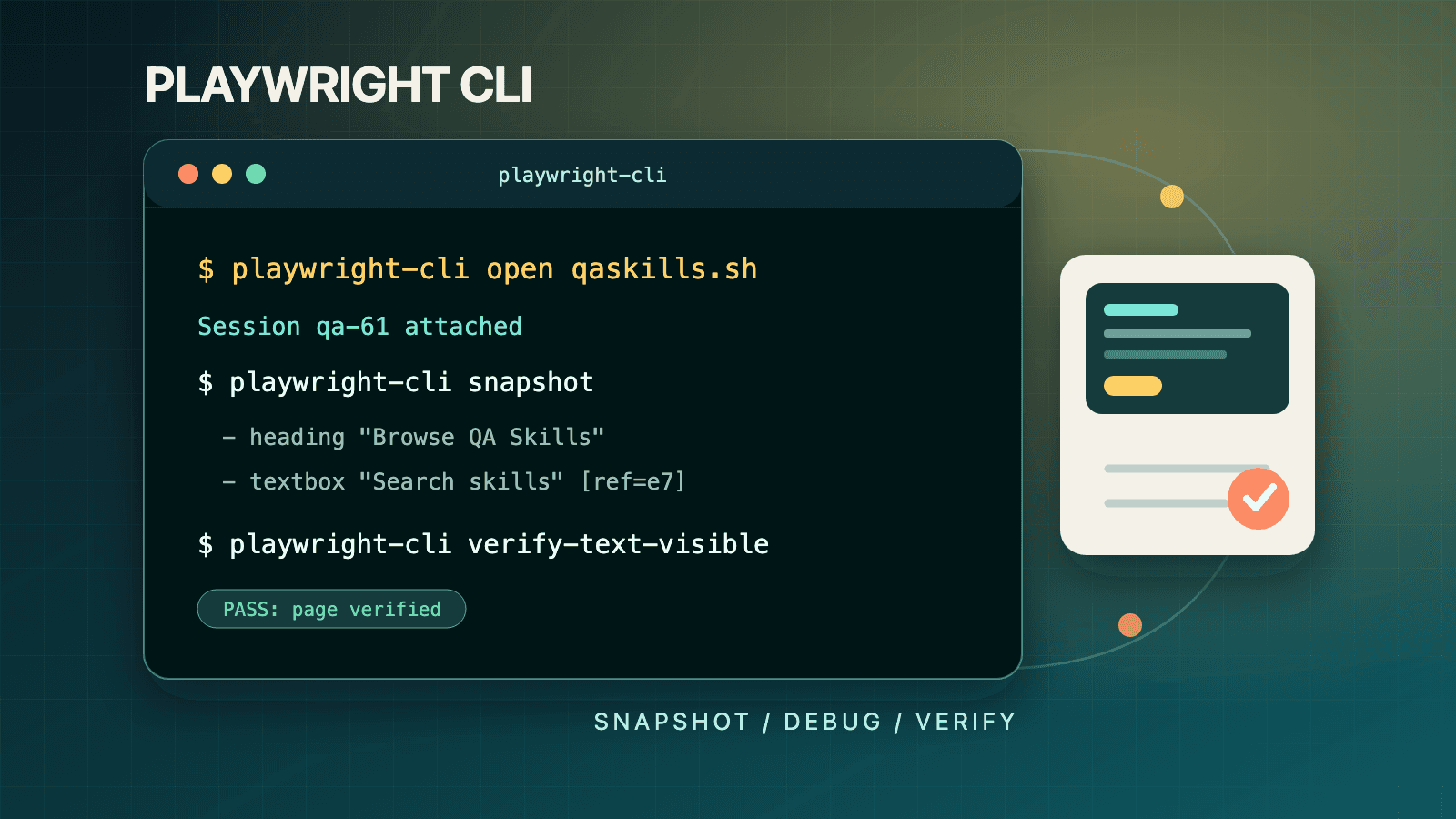
A Playwright CLI snapshot is a YAML accessibility-tree view of the current page, with short-lived refs such as e5 attached to interactive elements. Read the newest snapshot, choose the ref for the element the agent just observed, perform one action such as playwright-cli click e5, and read the new snapshot returned afterward. Refs are stable only within their snapshot and can become invalid when the page changes. A snapshot is not a screenshot, a CSS selector, or a complete accessibility audit.
That observe-act-observe loop is the core of the dedicated playwright-cli agent interface. It gives a coding agent a compact semantic representation instead of making it infer every control from pixels or send a large page DOM through its context. This guide explains what the output guarantees, where it does not, and how to use refs without creating brittle browser workflows.
What a Playwright CLI Snapshot Contains
After each browser command, playwright-cli reports the current page URL and title plus a link to a timestamped snapshot under .playwright-cli/. The file represents the page as an accessibility tree. Headings, text, lists, form controls, links, and other semantic nodes appear in a concise nested structure. Interactive nodes receive refs that another CLI command can target.
A simplified TodoMVC snapshot looks like this:
- heading "todos" [level=1]
- textbox "What needs to be done?" [ref=e5]
- listitem:
  - checkbox "Toggle Todo" [ref=e10]
  - text: "Buy groceries"
- contentinfo:
  - text: "1 item left"
  - link "All" [ref=e20]
  - link "Active" [ref=e21]
  - link "Completed" [ref=e22]
The text and roles help an agent understand intent. The ref is an action handle for that observed state. e5 is not derived from an HTML id and does not promise to be e5 in another browser, session, page state, or later snapshot. The official documentation defines the format as e followed by a number, unique within one snapshot, and assigned to interactive elements.
Automatic snapshots are also evidence about what the accessibility layer exposes. If a control appears as an unnamed button, the output tells you the agent and assistive technology lack a meaningful accessible name. That signal is useful, but it is only one part of accessibility quality.
Snapshot, Screenshot, ARIA Assertion, or DOM Query?
Several Playwright features use similar language. Choose by the question you need to answer:
| Need | Best tool | Output | Important limitation |
|---|---|---|---|
| Let an agent understand and target semantic controls | playwright-cli snapshot | YAML accessibility tree with refs | Refs are tied to current observed state |
| Verify pixels, layout, canvas, or visual overlap | playwright-cli screenshot | Image artifact | Pixels do not explain roles or accessible names |
| Assert an accessibility-tree contract in a test file | expect(locator).toMatchAriaSnapshot() | Test assertion and diff | This is a Playwright Test/API feature, not an agent ref |
| Inspect a property not represented in the snapshot | playwright-cli eval or a documented locator form | Evaluated page data or direct target | Requires a deliberate query and stronger review |
| Find a stable element across repeatable scripted runs | User-facing Playwright locator or test id | Locator expression | It is not a ref to the exact element just observed |
Playwright 1.60 expanded the programmatic ARIA snapshot API with page-level snapshots and optional boxes for AI consumption. That release-note feature does not change the basic agent CLI contract: the CLI's snapshot command returns an accessibility representation and refs for interaction. Do not claim that every CLI snapshot includes bounding boxes, and do not paste an agent ref into a Playwright Test locator.
For a map, canvas editor, or custom widget with no accessible element, a semantic snapshot may not expose an actionable target. The agent CLI has a separate vision capability with screenshots and coordinate commands. Use that only when the interface genuinely lacks a semantic target; it is not a reason to skip accessible markup in an application you control.
The Correct Ref Lifecycle
The safest mental model is a lease, not an identity. A ref gives the agent permission to address the element represented in the current observation. A navigation, reload, route change, dialog transition, list update, or other page mutation may invalidate that lease. The next command returns an updated snapshot from which the next ref should be selected.
Use this sequence:
- Observe the current page output.
- Open or read the linked snapshot.
- Match the intended control by role, accessible name, surrounding text, and state.
- Use its current ref in one action.
- Inspect the returned page state and snapshot.
- Re-plan from the new state rather than assuming the previous ref map survived.
Here is a manual version of the loop:
playwright-cli open https://demo.playwright.dev/todomvc/ --headed
playwright-cli snapshot --filename=empty-list.yaml

# Read empty-list.yaml and use the textbox ref reported there.
playwright-cli fill e5 "Review accessibility tree"
playwright-cli press Enter

# The page changed. Capture and read a new ref map before checking the item.
playwright-cli snapshot --filename=one-item.yaml
playwright-cli check e10
The example refs mirror the shape in the official documentation, but your values are output, not inputs to memorize. If one-item.yaml assigns the checkbox e12, use e12. A robust agent instruction says "use the checkbox ref from the latest snapshot," not "always check e10."
This behavior is intentionally different from a maintained test. A Playwright Test locator such as page.getByRole('checkbox', { name: 'Toggle Todo' }) stores the logic needed to find an element again and benefits from auto-waiting. A ref points to the exact element the agent just saw, which is efficient for an interactive terminal loop but unsuitable as a permanent selector in source code.
Take an On-Demand Snapshot
Every command normally returns a snapshot link, but an explicit snapshot is useful before a risky action, after waiting for an external state change, or when you want a named artifact:
playwright-cli snapshot
playwright-cli snapshot --filename=before-submit.yaml
playwright-cli snapshot "#main"
playwright-cli snapshot e34
playwright-cli snapshot --depth=4
These forms are documented for a full page, custom filename, CSS-selector scope, element-ref scope, and depth limit. Scoping and depth are context-budget controls, not merely formatting preferences. A large application shell can contain hundreds of navigation, menu, and table nodes unrelated to one form. A snapshot of #main, a known panel, or a current ref reduces noise and the chance that an agent chooses a same-named control elsewhere.
Scope only after you understand the page. An overly narrow selector can hide a validation summary, modal, toast, or navigation outcome that determines whether the action succeeded. Start broad enough to establish context, narrow for a focused interaction, then inspect a broad result when success can appear outside that region.
Depth has a similar tradeoff. A small value can make a deeply nested control disappear even though it is present and accessible. Increase depth or remove the limit before concluding that a control has no semantics.
Use Refs, CSS, or Playwright Locators Deliberately
The CLI accepts refs, CSS selectors, and Playwright locator strings for interaction. The official snapshot guidance prefers refs because they identify the element the agent just observed:
# Ref selected from the latest snapshot
playwright-cli click e10

# CSS alternatives
playwright-cli click "[data-testid='submit']"

# User-facing Playwright locator alternative
playwright-cli click "getByRole('button', { name: 'Submit' })"
Use a ref for an immediate action after observation. Use a user-facing locator when you need to express semantic intent and no usable ref is present, or when a reviewed workflow intentionally avoids depending on one generated snapshot. Use CSS when the application exposes a reliable contract such as a test id and the semantic representation is insufficient. Avoid deep structural CSS copied from browser developer tools; it usually encodes implementation details rather than user intent.
The key is not to mix lifetimes accidentally. A ref is strongest as an ephemeral handle. A locator is strongest as repeatable lookup logic. A selector can be strong when it targets an explicit test contract, but weak when it depends on nesting or generated class names.
Make Snapshot Output Efficient for Agents
Long output consumes agent context and can distract planning. Apply reductions in this order:
- Start with the automatic full-page snapshot to establish page identity and major regions.
- Scope to the feature area by selector or current ref.
- Limit depth only when nesting, rather than page breadth, is the source of noise.
- Give important artifacts descriptive filenames.
- Use raw output for shell processing only when page metadata is not needed.
The documented raw form strips page information and returns command output directly:
playwright-cli snapshot --raw | grep "button"
That can answer a narrow question, but grep is not a substitute for understanding hierarchy. Two "Delete" buttons may belong to different rows, and a text match alone discards the surrounding structure needed to choose safely. For consequential actions, inspect the relevant subtree rather than filtering to one line.
Token efficiency should never mean omitting evidence. Keep a named before snapshot, a named screenshot when visual state matters, and a final snapshot showing the outcome for workflows that will be reviewed. Artifacts make an agent's claim independently inspectable.
What Snapshots Reveal About Accessibility
The tree exposes roles, accessible names, heading levels, control states, and semantic grouping as the browser presents them. It can reveal high-value defects:
- An icon button has no accessible name.
- A visual heading is exposed as plain text.
- Two controls have the same ambiguous name.
- A custom checkbox is not exposed as a checkbox.
- Error text appears visually but is absent from the semantic subtree being inspected.
- Focus lands on a control different from the one the agent expected.
However, a clean-looking snapshot does not establish WCAG conformance. It does not by itself evaluate color contrast, keyboard order across the whole flow, motion, target size, captions, cognitive clarity, zoom behavior, or every name-role-value rule. Nor does it replace testing with screen readers and keyboard-only interaction. Treat the snapshot as an accessibility-informed interaction model and one source of test evidence.
If your goal is a repeatable tree contract, implement reviewed ARIA snapshot assertions in Playwright Test. If your goal is automated rule detection, use an accessibility engine designed for that purpose. If your goal is agent navigation, use the CLI snapshot and current refs. Naming the purpose prevents false confidence.
Dynamic Pages, Dialogs, and Delayed State
Modern pages can mutate after an action without a full navigation. Search suggestions arrive, a table refreshes, or a client route replaces a panel. The returned snapshot is the new planning point even if the URL did not change. Do not use URL change as the only signal that refs may be stale.
Dialogs are a special case because they can block all further actions. The official snapshot best practices say to check command output for an open dialog and handle it before continuing. If a click reports a dialog, stop the planned sequence, inspect the state, use the documented dialog accept or dismiss capability as appropriate, and then obtain a fresh snapshot.
For state that changes outside a CLI action, such as a background job finishing, take an explicit snapshot before interacting again. A stale file on disk does not refresh itself. The timestamped path represents one observation, not a live accessibility tree.
Turn Snapshot Output into Reviewable Evidence
A useful snapshot artifact needs context beyond its YAML. Record the session, scenario, page URL, action that preceded it, and question the snapshot is meant to answer. A file named before-submit.yaml is valuable only if a reviewer can connect it to the right role and run. In parallel work, include the role or task identifier in the filename and artifact report.
Preserve both sides of an important transition when the claim depends on change. The before snapshot establishes available controls and state; the after snapshot establishes the semantic outcome. Add a screenshot when visual layout or styling is part of the claim. This combination lets a reviewer distinguish "the agent clicked a ref" from "the intended user-visible and accessibility-visible result occurred."
Do not line-diff timestamped CLI snapshots and call every changed ref a regression. Ref numbers are ephemeral, and unrelated dynamic content can move. Compare roles, accessible names, states, hierarchy, and expected user outcomes. If the semantic structure must become a stable, automated contract, encode a focused ARIA snapshot assertion in reviewed Playwright Test code rather than turning raw agent artifacts into an accidental golden file.
Finally, apply the same data controls used for screenshots and traces. Accessibility output can contain account names, entered form values, messages, and other page text. Retain only what the investigation requires and avoid publishing snapshots from production sessions.
Common Mistakes
Treating refs as stable selectors
Saving e42 in a script or prompt assumes an internal assignment will repeat. Save user intent in a test locator; read refs from current output in an agent loop.
Using a ref from another session
Refs are scoped to a snapshot, and sessions have separate browser instances and state. A ref from an admin session has no defined meaning in a user session.
Acting from an old snapshot after the page changes
The previous file remains readable, which can make it look authoritative. Its contents describe history. Use the snapshot returned by the most recent state-changing command.
Calling the snapshot an accessibility audit
The tree can surface semantic problems, but it is not a comprehensive standards evaluation. Report exactly what was inspected.
Confusing CLI snapshots with test assertions
playwright-cli snapshot produces an agent observation and refs. toMatchAriaSnapshot compares an expected semantic structure in test code. They solve related but different problems.
Limiting depth too aggressively
If a target vanishes after --depth=2, the depth limit may have hidden it. Re-run without the limit before blaming application accessibility.
Scoping away success or error feedback
A form-only snapshot may exclude a toast or page-level error summary. Inspect the region where the product communicates the result, not only the region where the action began.
Choosing by visible text alone
Repeated labels are common. Consider role, accessible name, parent region, state, and surrounding content before selecting a ref.
Troubleshooting Snapshot and Ref Problems
| Symptom | Probable cause | Correct next step |
|---|---|---|
| "Ref not found" after a click or navigation | Ref came from an older state | Run a new snapshot and select the target again |
| Expected button is absent | Depth or selector scope is too narrow | Remove --depth or widen the scoped region |
| Control appears without a useful name | Application accessibility defect | Confirm in the DOM/accessibility tools and fix the product's semantic labeling |
| Snapshot is extremely large | Whole-page output includes unrelated shell content | Scope to the relevant selector/ref and use a sensible depth |
| Several identical names appear | Context is ambiguous | Inspect parent regions or use a reviewed role/test-id locator |
| Screenshot shows a control that snapshot omits | Canvas/custom widget or missing semantics | Prefer fixing semantics; use vision mode only when the UI genuinely requires coordinates |
| Ref works in one terminal but not another | Commands target different sessions | Name the session explicitly and verify active sessions |
| Snapshot does not show a background update | File is a past observation | Run playwright-cli snapshot again after the external change |
| Commands stop after a modal action | A browser dialog is blocking | Handle the reported dialog, then re-snapshot |
If a missing element is safety-critical, do not fall back immediately to arbitrary eval code or a guessed coordinate. First remove snapshot limits, confirm the correct tab and session, inspect visual state, and determine whether the application has an accessibility defect. A fallback should be an explicit engineering decision, not an agent's silent escape hatch.
Frequently Asked Questions
Does every playwright-cli command create a snapshot?
The official model says commands return current page information and a snapshot link, making the latest command output the normal next observation. Use explicit playwright-cli snapshot when you need an on-demand, scoped, depth-limited, or named file.
How long is an element ref valid?
It is valid within the state represented by its snapshot and may be invalidated when the page changes. Treat every navigation or mutation as a reason to use the newly returned snapshot. Do not assign a time duration such as "five minutes"; validity is about page state, not elapsed time.
Are refs more reliable than CSS selectors?
For the immediate next action, Playwright recommends refs because they point to the exact element the agent just saw. For a maintained test that must rediscover an element on later runs, user-facing locators or explicit test ids are the appropriate durable contracts.
Can I snapshot only one component?
Yes. The documented command accepts a CSS selector or an element ref as a scope, for example playwright-cli snapshot "#main" or playwright-cli snapshot e34. Ensure the scope does not hide outcome messages you need to verify.
What does --depth do?
It limits tree depth to reduce nested output. It does not wait for more content or improve accessibility. A low depth can omit deeply nested targets, so remove the limit during diagnosis.
Is a snapshot the same as a screenshot?
No. A snapshot is semantic YAML derived from the accessibility tree; a screenshot is a pixel image. Use both when a scenario requires semantic targeting and visual evidence.
Can a snapshot prove my site is accessible?
No. It can expose useful roles, names, and structure and can reveal defects, but full accessibility assessment also needs automated rules, keyboard testing, visual checks, assistive-technology testing, and human judgment against applicable requirements.
Why did the ref number change even though the label did not?
Refs are generated for a snapshot rather than assigned as permanent element identities. A re-render or different tree composition can produce a different number for the same user-facing control. Match intent from current semantics instead of comparing ref numbers.
How do snapshots help debug a failed Playwright Test?
Run the test with npx playwright test --debug=cli, attach the dedicated CLI to the session name printed by the runner, and call playwright-cli snapshot on the paused state. The debugging and trace guide covers that workflow without confusing live refs with post-run trace snapshots.
Related Playwright CLI Guides
Start with installing Playwright CLI if the executable or browser is not ready. Use the complete Playwright CLI guide for the full command landscape, and the sessions, dashboard, and attach guide when refs appear to cross browser instances. For reusable agent instructions, explore the QASkills directory and the dedicated Playwright CLI skill.
The authoritative behavior is documented in Playwright's official snapshots guide, agent quickstart, capability map, and release notes. The operational rule is simple: observe the current semantic state, act through a target grounded in that observation, and verify the new state before continuing.