How to Install Playwright CLI Skills in Codex and Claude Code
Install Playwright CLI skills for Codex and Claude Code, verify agent discovery, run a browser smoke test, and fix common skill setup failures.
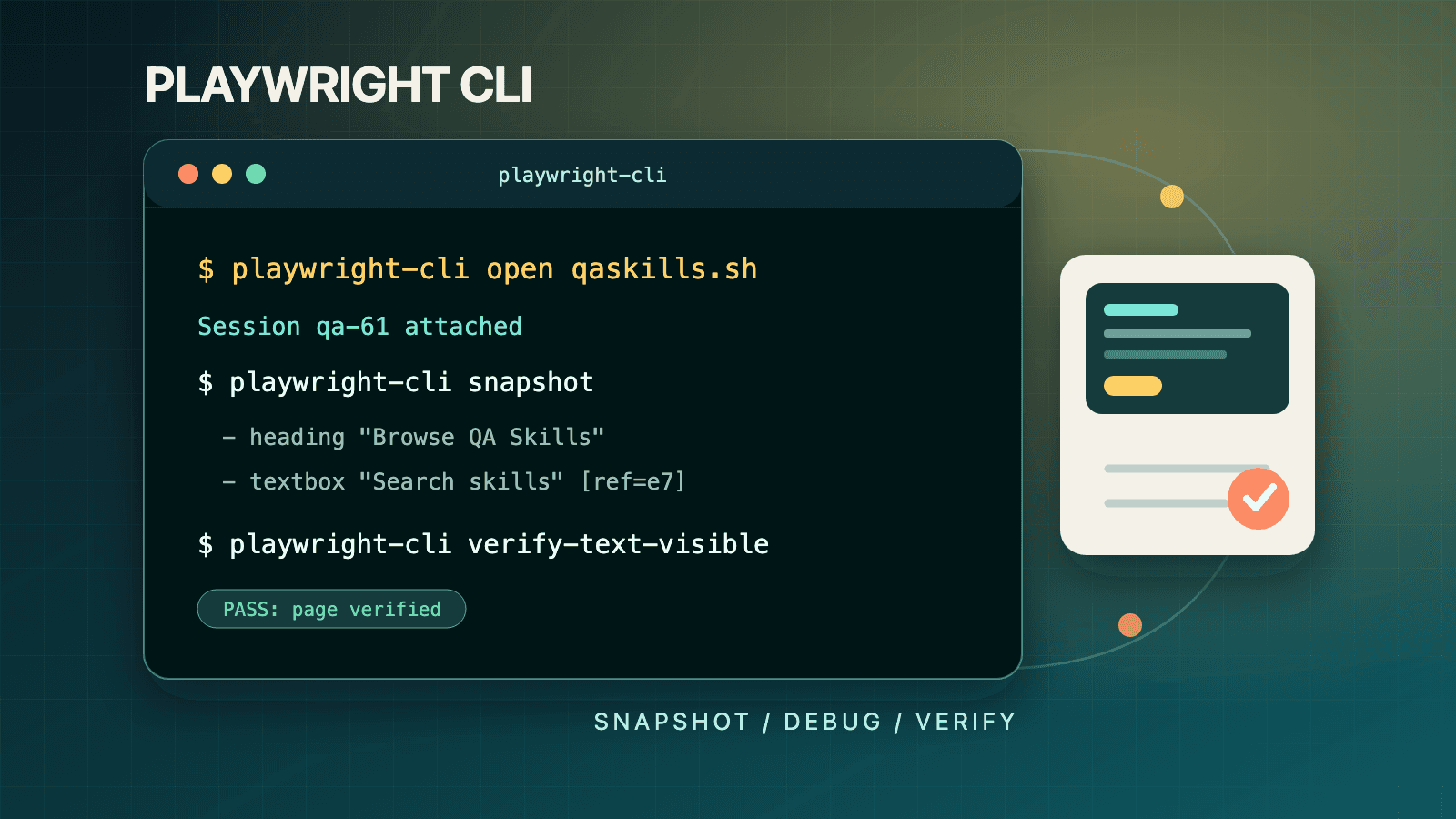
To install Playwright CLI skills for Codex or Claude Code, run npm install -g @playwright/cli@latest, then playwright-cli install --skills. Verify the executable and installed skill with playwright-cli --help; current official CLI releases print the skill path so an agent can discover it. Codex and Claude Code use the same Playwright installer command. Playwright does not document separate --codex or --claude flags. Node.js 20 or newer is required.
The skill supplies structured instructions for the dedicated playwright-cli browser interface. It does not install Playwright Test, and it does not turn npx playwright test into the agent CLI. This guide verifies both layers, proves the setup with a safe browser task, and isolates failures in the executable, skill discovery, browser launch, or agent permissions.
Understand the Two-Layer Installation
The package is @playwright/cli, and its executable is playwright-cli. Playwright describes it as a command-line browser automation interface designed for coding agents. It exposes compact commands such as open, snapshot, click, fill, and screenshot. After an action, it returns page information and a link to an accessibility-tree snapshot. An agent reads that snapshot, chooses an element reference, acts, and reads the refreshed state.
The installed skill is the second layer. It gives a compatible agent structured reference material for workflows such as browser session management, request mocking, storage state, test generation, test debugging, tracing, video recording, and inspecting attributes. The skill calls the executable; it is not another browser driver and does not bundle a separate model. If playwright-cli --help fails, fix the executable first. If help works but an agent ignores the workflow, investigate skill discovery and the agent's tool permissions.
That design is different from Playwright Test. The command npx playwright test discovers and executes test files using the Playwright Test runner. It supports projects, fixtures, retries, reporters, and test configuration. The agent CLI controls a live browser across terminal calls. One can help debug the other, but installing @playwright/cli does not replace @playwright/test, and installing the test package does not automatically give an agent the dedicated playwright-cli workflow.
The distinction matters because older articles often use "Playwright CLI" to mean every command beginning with npx playwright. In the 1.61-era documentation, playwright-cli has its own installation, snapshots, sessions, dashboard, attach modes, storage controls, tracing commands, and skills. Use the complete Playwright CLI guide when you need the broader capability map.
Prerequisites
The official installation page lists two prerequisites:
- Node.js 20 or newer.
- A coding agent such as Claude Code, Codex, or another agent that supports locally installed skills and can run terminal commands.
Confirm Node before diagnosing Playwright:
node --version
npm --version
A version beginning with v20 or a later major meets the documented runtime requirement. The agent is not technically required to type commands yourself, but it is the intended consumer. If your environment blocks global package installation, use the documented npx route for discovery or configure an approved global npm prefix rather than using an unsafe permission workaround.
You also need normal browser-launch permissions. Linux containers may lack operating-system libraries, corporate machines may block browser downloads, and remote shells may not have a display for headed mode. Those are environment constraints, not evidence that the CLI command names are wrong.
Choose an Installation Path
| Situation | Official entry point | What it changes | Recommended use |
|---|---|---|---|
| You use the CLI regularly | npm install -g @playwright/cli@latest | Adds playwright-cli to your executable path | Best default for coding agents and repeated local work |
| You cannot or do not want to install globally | npx playwright-cli --help | Resolves the executable through npx | Good for evaluation and command discovery |
| The browser cannot download on first launch | playwright-cli install-browser | Explicitly installs default Chromium | Use after the CLI itself works |
| A Linux host needs browser dependencies | playwright-cli install-browser --with-deps | Installs browser plus documented system dependencies | Use in a controlled machine or container with required privileges |
| Codex or Claude Code needs structured Playwright guidance | playwright-cli install --skills | Installs local Playwright skill files | Preferred setup for repeat browser work |
| Skill discovery is unavailable or intentionally disabled | playwright-cli --help | Exposes commands and, in current releases, the installed skill path | Supported skills-less fallback |
Global installation is the clearest path because every later example can use the same playwright-cli executable. The npx form is official, but do not alternate randomly between a global latest install and a cached npx resolution while troubleshooting. First identify which executable and version your shell is invoking.
Install the CLI, Then Install Its Skills
Install the package, install its local skill material, then ask the executable for help:
npm install -g @playwright/cli@latest
playwright-cli install --skills
playwright-cli --help
Successful help output proves three executable-level facts: npm resolved the package, the executable was linked into a directory on your PATH, and Node could start it. Current official playwright-cli release notes also say help prints the installed agent skill path, allowing coding agents to find it without being told. Confirm that path is present after install --skills; do not invent a location or manually copy files before checking what your installed release reports.
This still does not prove a browser can launch or that a particular agent loaded the skill. Keep those gates separate. The shell can run the executable while Codex lacks terminal permission. Claude Code can see a skill while a corporate proxy blocks the first browser download. A browser can launch while the agent starts in a different workspace or process environment and never discovers the installed reference.
If your team pins tool versions for reproducibility, replace @latest with the version approved by the team. This article describes behavior documented alongside Playwright 1.61. Verify a pinned older package's own help before assuming it includes sessions, dashboard attachment, or agent debugging introduced in newer releases.
Do not substitute this command:
npm install -D @playwright/test
npx playwright test
That is a valid Playwright Test setup, but it installs and runs the test runner. It does not install the dedicated agent skill described here. A project can legitimately contain @playwright/test while the developer also has @playwright/cli and its skill installed.
Let the CLI Install Its Browser
On first use, the agent CLI downloads a browser automatically. For the shortest quickstart, simply run open and let that happen. An explicit installation is useful when preparing a machine image, diagnosing a download separately, or selecting a non-default engine:
playwright-cli install-browser
playwright-cli install-browser firefox
playwright-cli install-browser --with-deps
The first command installs default Chromium. The second explicitly installs Firefox. The third includes operating-system dependencies and is chiefly relevant on Linux. The same command also documents --dry-run, --list, --force, --only-shell, and --no-shell. Use --dry-run to inspect intended work and --list to inspect available browser installations before forcing a reinstall.
This is another point where command families are easy to confuse. The agent CLI uses playwright-cli install-browser. The Playwright Test/library CLI uses npx playwright install. Both install Playwright-managed browsers, but they belong to different executables and should not be presented as interchangeable syntax.
Run Your First Headed Browser Session
Use Playwright's TodoMVC demo because its state and controls make the snapshot loop easy to see:
playwright-cli open https://demo.playwright.dev/todomvc/ --headed
playwright-cli type "Buy groceries"
playwright-cli press Enter
playwright-cli type "Water flowers"
playwright-cli press Enter
playwright-cli screenshot
The --headed flag makes the browser visible. Headless is the documented default, so omit the flag in an unattended agent workflow. After open, the terminal output includes the page URL, page title, and a path under .playwright-cli/ for a YAML snapshot. After each interaction, the output reflects the current page again.
The official quickstart later checks an item using a ref such as e21. Treat that number as example output, not a permanent selector. Read the snapshot produced by your own session, locate the checkbox's current [ref=eN], and use that current value:
playwright-cli snapshot
playwright-cli check e21
playwright-cli screenshot --filename=todo-complete.png
If your snapshot says e18 instead, use e18. Element refs are assigned from a particular snapshot and can be invalidated when the page changes. Hard-coding a ref copied from documentation is one of the fastest ways to make a correct installation look broken. The snapshot and element-reference guide explains this lifecycle in depth.
Understand What the Session Preserves
The default browser profile is in memory. Cookies and storage survive from one CLI command to the next while that session remains open, but they are lost when the browser closes. This continuity is why six separate shell commands can operate on one TodoMVC page rather than launching six independent browsers.
Named sessions isolate parallel work. For example, an agent can reserve a stable name through its environment:
PLAYWRIGHT_CLI_SESSION=todo-app claude .
Every agent CLI command launched in that agent process then uses the todo-app browser instance. Session naming is not required for a first manual walkthrough, but it prevents collisions when multiple agents or roles use the same workstation. For persistent profiles, dashboard monitoring, cleanup commands, and connection choices, continue to the sessions, dashboard, and attach guide.
Verify Skill Use in Codex and Claude Code
The installation command is identical for both agents:
playwright-cli install --skills
playwright-cli --help
Do not look for a second Playwright command that registers the skill with a vendor-specific flag. The install writes local skill material, while the agent decides how and when locally installed skills enter context. Playwright's current help output is the authoritative way to find the installed skill path. Agent product settings, workspace trust, sandbox policy, and session startup determine whether that material can be read and whether its terminal commands can run.
Validate the skill in Codex
Open the Codex task in the workspace where you intend to test. Ask for a bounded browser action and name playwright-cli explicitly on the first verification. The expected behavior is not a particular sentence from the model; it is a sequence grounded in real tool output: inspect available guidance or help, launch the dedicated executable, read the returned snapshot, and save requested evidence.
Use a prompt such as:
Use the installed Playwright CLI skill and playwright-cli to inspect
https://demo.playwright.dev/todomvc/. Confirm the page title, add one todo,
read the fresh snapshot, and save a screenshot. Do not use npx playwright test.
If Codex does not surface the skill, use Playwright's documented skills-less fallback: tell it to run playwright-cli --help and use the dedicated CLI. That proves whether the blocker is skill discovery or command execution. Do not compensate by giving the agent invented syntax. Also check whether Codex has permission to execute the global binary and write artifacts in the workspace.
Validate the skill in Claude Code
Use the same bounded prompt in Claude Code. Playwright's documentation explicitly shows starting Claude with a named browser session:
PLAYWRIGHT_CLI_SESSION=todo-app claude .
That environment variable selects the browser session for commands launched by that agent process; it does not install the skill. Run playwright-cli install --skills first. A named session is useful during validation because it prevents another agent using the default session from changing the page underneath Claude's snapshot/ref loop.
If Claude can describe the skill but cannot launch a browser, the skill is already discovered. Investigate terminal approval, PATH, browser download, display mode, or network policy instead of reinstalling reference files. If manual playwright-cli open works in your shell but not in Claude Code, compare the shell environment available to the agent.
Judge behavior, not skill-name recitation
A successful smoke test should satisfy all of these observations:
- The agent uses
playwright-cli, notnpx playwright test, for live browser control. - It reads current page or snapshot output before choosing a generated ref.
- It treats refs as short-lived and re-observes after page changes.
- It writes the requested screenshot or snapshot and reports the actual path.
- It stays within the target and data boundaries in the prompt.
The skill can work even if the agent does not announce its name. Conversely, saying "I loaded the Playwright skill" proves nothing without executable output and browser evidence.
A precise first task is better than "test this site." State the target, scope, evidence, and boundaries. For example:
Use playwright-cli to test the add, complete, and filter flows on
https://demo.playwright.dev/todomvc/. Read a fresh snapshot before using
element refs. Capture a screenshot for each failed scenario. Do not modify
application data outside this demo.
The wording makes the interface explicit and gives the agent an observable completion condition. The official Playwright skill teaches tool operation; a team QA skill can add application-specific risk, evidence, and review rules. For reusable QA context beyond the browser tool itself, browse the QASkills directory or install the Playwright CLI skill.
A Reliable First-Run Checklist
Run the setup as a sequence of narrow gates:
- Confirm Node 20 or newer.
- Install
@playwright/cliand confirmplaywright-cli --help. - Run
playwright-cli install --skillsand verify the skill path through help. - Open the demo manually and allow the first browser download.
- Confirm the terminal prints a page URL, title, and snapshot path.
- Ask Codex or Claude Code to perform one bounded action with
playwright-cli. - Confirm it reads a fresh snapshot and produces the requested artifact.
- Give each concurrent agent a named session before parallel use.
This order preserves the failure boundary. If help fails, investigate npm and PATH. If help works but open fails, investigate browser download, host libraries, proxy, or launch policy. If manual commands work but an agent fails, investigate the agent's shell, permissions, skill discovery, prompt, or session selection.
Common Mistakes
Installing the wrong package
@playwright/test is the test runner package; @playwright/cli provides the dedicated agent executable. Install the package that matches the workflow rather than inferring from the word "CLI."
Running npx playwright test as the browser quickstart
That command expects tests and configuration. The agent quickstart begins with playwright-cli open <url>. The test runner appears in this cluster only when a test is deliberately paused with --debug=cli for agent attachment.
Looking for separate Codex and Claude installer flags
The documented command is playwright-cli install --skills. Agent-specific skill discovery happens after installation; do not invent --codex, --claude, or an MCP registration step.
Assuming skill installation grants browser permission
The skill teaches commands. The host agent still needs permission to execute the binary, access the target, launch a browser, and write artifacts. Diagnose those controls separately.
Assuming browsers always install during npm installation
The agent CLI documents automatic browser download on first use, not necessarily during npm install -g. A successful package install can therefore be followed by a browser download on the first open.
Copying an element ref from a guide
Refs belong to current snapshot output. Read your snapshot after navigation or mutation and use the value it reports. Do not treat e21 as a cross-run ID.
Using --headed in a displayless environment
Headed mode is useful for learning and human observation. Headless is the default and is normally appropriate for remote shells or containers without a display server.
Using a persistent profile for every task
Persistence can retain authentication and application state, but it also carries contamination between runs. Begin with the isolated in-memory default. Opt into --persistent or a custom --profile only when state survival is intentional.
Giving several agents the default session
Concurrent commands can navigate or mutate the same browser unexpectedly. Assign named sessions or the PLAYWRIGHT_CLI_SESSION environment variable before parallel work.
Troubleshooting Skill Installation and Browser Launch
| Symptom | Likely boundary | What to check |
|---|---|---|
playwright-cli: command not found | Executable path | Re-run npm's global install, inspect npm's global binary location, and start a fresh shell |
| Node version error or startup syntax error | Runtime | Confirm node --version is 20 or newer in the same shell the agent uses |
install --skills succeeds but help does not expose a skill path | CLI version or incomplete install | Confirm the current executable, update the approved package, and rerun the documented installer |
| Manual commands work but Codex or Claude ignores the skill | Agent discovery or permissions | Confirm local-skill support and read access; explicitly direct the agent to playwright-cli --help as the supported fallback |
Help works, but open cannot download a browser | Network or package registry policy | Check proxy, TLS inspection, outbound access, and try the explicit documented install-browser command |
| Browser reports missing libraries on Linux | Host dependencies | Use install-browser --with-deps in an approved environment or add the listed dependencies to the image |
| Headed launch fails on a server | Display environment | Omit --headed and use default headless mode |
| A ref cannot be found | Stale snapshot | Run playwright-cli snapshot and use a ref from the newest state |
| An agent opens the wrong page or sees another agent's login | Session collision | Set a unique session name and list or close stale sessions |
| The command behaves unlike this guide | Version mismatch | Check executable help and package version; do not assume an old cached npx package has 1.61-era features |
Avoid sudo npm install -g as an automatic response to every permission failure. It can leave root-owned npm caches or project files and expands the trust boundary. Prefer a user-writable npm prefix, a managed tool image, or the documented npx path according to your organization's Node setup.
Frequently Asked Questions
Is playwright-cli the same as npx playwright test?
No. playwright-cli is the dedicated browser automation interface for coding agents. npx playwright test is the Playwright Test runner. The runner can pause a test with --debug=cli, at which point the agent CLI attaches to that paused browser, but they remain separate command surfaces. See the agent debugging and trace guide for that bridge.
Do I need to install a browser separately?
Usually not for a first run. The official agent CLI installation guide says a browser downloads automatically on first use. Use playwright-cli install-browser when you want an explicit preinstall or need to diagnose browser setup independently.
Which browser is the default?
The installation page identifies default Chromium for install-browser, while the configuration guide shows Chrome as the default selection for open --browser. Follow the help shown by your installed version when the distinction between bundled Chromium and a Chrome channel matters, and specify --browser=firefox, --browser=webkit, or --browser=msedge when you need an explicit engine or channel.
Do Codex and Claude Code need different Playwright skill commands?
No. Run playwright-cli install --skills once in the intended environment. Each host then applies its own local-skill discovery and terminal policy. Use playwright-cli --help to verify the installed skill path and as the documented fallback when automatic discovery is unavailable.
Are Playwright skills required?
No. Playwright documents a skills-less mode in which the agent checks playwright-cli --help. Installing skills supplies structured guidance and usually reduces command-discovery overhead; it does not alter the web application or replace the browser executable.
Where does the CLI write snapshots and screenshots?
Automatic output is reported by each command, with examples under .playwright-cli/. Use explicit filename options where the command supports them when an artifact is part of a review or handoff. Always read the path printed by your installed version instead of assuming a timestamped filename.
Does the default session keep me logged in forever?
No. The default in-memory profile preserves cookies and storage between commands while the browser remains open, then loses them when it closes. Persistent profiles and state-save/state-load workflows are explicit choices and deserve separate credential-handling rules.
What should I read after the quickstart?
Read the snapshot guide before building ref-heavy agent flows, the sessions and attach guide before parallel or authenticated work, and the debugging guide before connecting the CLI to failing Playwright tests.
Official References and Next Steps
The commands in this tutorial are grounded in Playwright's official agent CLI installation, quickstart, skills, and configuration pages. Release-specific interoperability and agent debugging behavior is documented in the official Playwright release notes, while the official playwright-cli releases document current help-based skill discovery.
Once the TodoMVC walkthrough works, keep the next task narrow: assign a named session, open a non-production environment, read a fresh snapshot, perform one reversible scenario, and save evidence. That proves the full agent loop without confusing browser control with test execution or granting broader access than the task requires.