Run Parallel Playwright CLI Sessions with PLAYWRIGHT_CLI_SESSION
Run coding agents in isolated Playwright CLI browser sessions, monitor them in the dashboard, attach to existing browsers, and clean up state safely.
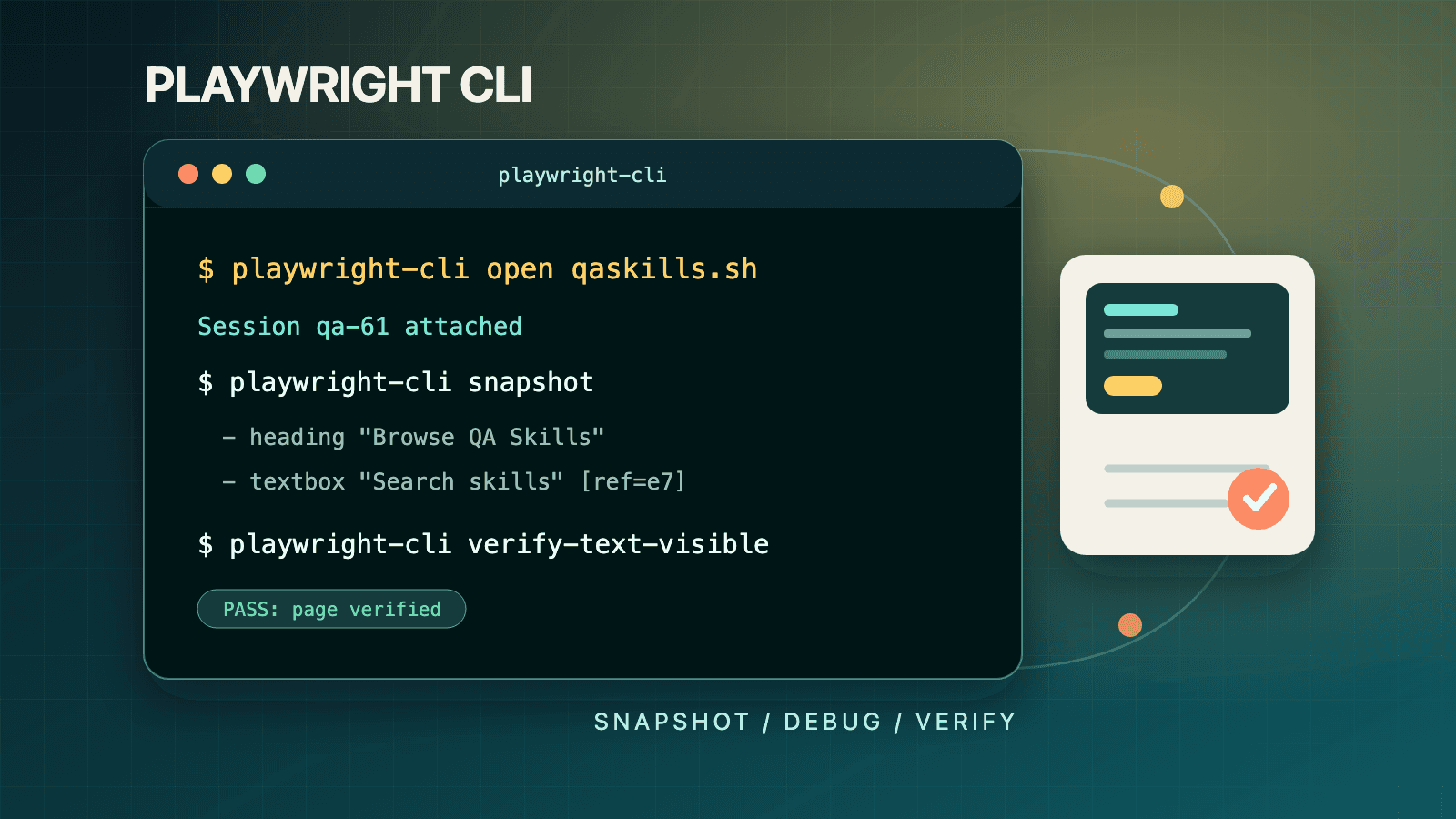
Give every concurrent coding agent a unique PLAYWRIGHT_CLI_SESSION value before it starts. For example, launch one Claude Code process with PLAYWRIGHT_CLI_SESSION=admin claude . and another with PLAYWRIGHT_CLI_SESSION=buyer claude .. Every playwright-cli command from each agent then targets its own browser instance, including separate cookies, localStorage, navigation history, and console log. Use playwright-cli show to watch both sessions and playwright-cli list to verify their names.
That is the practical answer to parallel Playwright CLI sessions. Session names prevent agents from navigating, authenticating, or clicking in the same default browser. They do not isolate your application's backend data, make shared test accounts safe, or automatically persist login after a browser closes. This guide separates browser isolation, profile persistence, dashboard observation, and attachment so each is used for the problem it actually solves.
Why the Default Session Fails Under Parallel Agents
The dedicated agent CLI maintains browser state across terminal calls. That continuity is essential: an agent can open a page, read a snapshot, fill a field, and click a ref in later commands. Without a session boundary, however, concurrent agents can share the default instance. Agent A may read a checkout snapshot just before Agent B navigates the page to account settings. Agent A's next ref is now stale or, worse, points into a state it did not intend to change.
Named sessions create separate browser instances. Playwright's official sessions guide says each session has its own cookies, localStorage, navigation history, and console log. The browser-level separation supports role-based exploration, simultaneous feature checks, and multiple autonomous agents on one workstation.
It is still possible for two isolated browsers to modify the same server-side customer, cart, or database row. Session isolation is not data isolation. Give parallel roles distinct test users and records, or design the scenario so shared backend state is intentional and synchronized.
Set PLAYWRIGHT_CLI_SESSION Before Each Agent Starts
Playwright documents this environment form:
PLAYWRIGHT_CLI_SESSION=todo-app claude .
All playwright-cli commands in that agent process use the todo-app browser instance. The name should identify purpose rather than a human's name: admin-settings, buyer-checkout, anonymous-search, or a task identifier is easier to operate than agent-2.
For two Claude Code processes, start them from separate terminals with separate values:
# Terminal A
PLAYWRIGHT_CLI_SESSION=admin-settings claude .

# Terminal B
PLAYWRIGHT_CLI_SESSION=buyer-checkout claude .
For Codex or another compatible coding agent, put PLAYWRIGHT_CLI_SESSION in the environment inherited by that agent instead of inventing a Playwright agent-specific flag. The variable is consumed by playwright-cli; how a host agent process receives environment variables is a host configuration concern. Verify the result with playwright-cli list rather than assuming the launcher propagated it.
An agent prompt should reinforce the boundary: "Use only your assigned Playwright CLI session, do not close other sessions, and report the session name with artifacts." The environment variable supplies the default; explicit instructions prevent an agent from using global cleanup as a convenience.
Environment Variable or Explicit -s?
Both mechanisms name a session, but they fit different operating patterns:
| Situation | Mechanism | Example | Why choose it |
|---|---|---|---|
| One agent process runs many CLI commands | Environment | PLAYWRIGHT_CLI_SESSION=buyer claude . | Removes repeated flags and keeps the whole agent on one browser |
| A human switches among sessions in one shell | Per-command option | playwright-cli -s=admin snapshot | Makes the target visible on each command |
| A one-off second browser is needed | Per-command option on open | playwright-cli -s=example open https://example.com --persistent | Creates or addresses a named browser without changing shell defaults |
| A browser launched elsewhere must be controlled | attach | playwright-cli attach --cdp=chrome -s=debug-session | Connects instead of launching a new browser |
| A human needs to observe all agents | Dashboard | playwright-cli show | Displays live sessions; it does not assign isolation |
The option can appear as -s=name in the official session examples. Release-note debugging output also shows the longer --session form. Follow the syntax printed by your installed playwright-cli --help, especially when operating a pinned older CLI release.
Do not set one global PLAYWRIGHT_CLI_SESSION value for an entire CI worker and then launch several agents that inherit it. That recreates the collision under a non-default name. Assign a unique value at each process boundary.
Allocate Session Names Before Parallel Work
Treat session names as a small concurrency contract. The orchestrator, human lead, or parent workflow should allocate them before agents begin, record which role owns each name, and define who may close it. Agents should not derive a generic name such as test independently because two otherwise isolated tasks can choose the same value.
A practical naming scheme combines role and task scope, for example admin-billing-1042 and member-billing-1042. Avoid putting access tokens, email addresses, or other secrets in the name because it appears in process environments, terminal output, lists, and the dashboard.
Verify routing at the start rather than after a collision:
playwright-cli list
playwright-cli -s=admin-billing-1042 snapshot
playwright-cli -s=member-billing-1042 snapshot
At first launch, a named session may not appear until that agent opens or attaches a browser. Use a simple readiness barrier: each worker opens its assigned non-production target, reports the session name and page title, and waits until the coordinator confirms all roles are distinct. Only then should destructive or order-dependent scenarios begin.
Artifact names need the same care. checkout.png from four sessions is ambiguous and may overwrite prior evidence in a shared directory. Include role and scenario in explicit screenshot filenames, then report which session produced each path. Session isolation protects browser state; unique artifact ownership protects the audit trail.
For a handoff, stop the original writer, tell the receiving agent the exact session name, and require a fresh snapshot. Do not let two agents alternate commands informally against one browser while both plan from private, outdated context.
Build an Isolated Admin and User Workflow
You can also address roles explicitly without an agent launcher. The official session workflow uses separate names and separate state files:
# Admin browser
playwright-cli -s=admin open https://app.example.com --persistent
playwright-cli -s=admin state-load admin-auth.json
playwright-cli -s=admin goto /admin/settings

# User browser
playwright-cli -s=user open https://app.example.com --persistent
playwright-cli -s=user state-load user-auth.json
playwright-cli -s=user goto /dashboard

# Observe both browsers
playwright-cli show
This is browser-role isolation, not a complete authorization test by itself. The admin and user state files must contain the intended accounts, and the backend must enforce authorization. Add negative checks from the user browser and confirm server behavior rather than treating two different dashboards as proof.
State files contain authentication material. Keep them out of source control, scope accounts to non-production environments, and control artifact retention. A named session improves routing but does not make credentials non-sensitive.
Choose the Right Profile Lifetime
Sessions and profiles are related but not synonymous. A session is the running browser identity addressed by a name. The profile determines how browser data survives.
| Profile mode | Command | Lifetime | Appropriate use |
|---|---|---|---|
| In-memory default | playwright-cli open https://example.com | Persists across commands, lost when browser closes | Clean exploratory tasks and most isolated agent runs |
| Persistent | playwright-cli open https://example.com --persistent | Saved to the documented platform cache and survives restart | Deliberate reusable login or extension state |
| Custom directory | playwright-cli open https://example.com --profile=./my-profile | Stored at the selected path | Controlled per-project profile ownership |
| Saved storage state | playwright-cli state-save auth-state.json | Explicit file loaded into a later session | Reviewable transfer of cookies/storage without reusing a whole profile |
Start parallel agents in the in-memory default unless persistence is a requirement. If several sessions use the same persistent profile or custom directory, they can reintroduce state coupling and file contention. Give each role an intentional profile location or, preferably, load distinct reviewed state into isolated sessions.
The default profile behavior also explains why closing a session loses an in-memory login. If that is unexpected, the fix is not to leave abandoned browsers running forever. Choose explicit persistence or save state, then define cleanup and credential rotation.
Observe Parallel Sessions in the Dashboard
Run:
playwright-cli show
The dashboard displays a grid of active sessions with live screencasts, names, URLs, and titles. Selecting a session opens a detail view with tabs, navigation controls, and remote mouse/keyboard input. Playwright documents dashboard use for watching background agents, taking over for CAPTCHA or 2FA, and closing stale sessions or deleting data.
Observation is not ownership. A human intervention can change the state underneath an agent's latest snapshot. After manual takeover, tell the agent to obtain a fresh snapshot before continuing. The same rule applies when DevTools or another attached client changes the page.
Playwright 1.59 release notes add a related test-runner integration: setting PLAYWRIGHT_DASHBOARD=1 makes @playwright/test browsers visible in the dashboard. That variable is not a replacement for PLAYWRIGHT_CLI_SESSION. The first exposes test browsers for observation; the second routes agent CLI commands to a named session.
Manage Session Lifecycle Without Harming Other Agents
Use the documented management commands:
playwright-cli list
playwright-cli -s=name close
playwright-cli -s=name delete-data
playwright-cli close-all
playwright-cli kill-all
list is the first diagnostic. close ends one named browser. delete-data removes stored profile data for that name. close-all intentionally closes every browser controlled by the CLI. kill-all is the force option for unresponsive browsers.
In parallel work, default to targeted cleanup. An agent assigned buyer-checkout should close buyer-checkout, not call close-all. Reserve kill-all for an operator who has confirmed that disrupting every active session is acceptable. Global cleanup can destroy another agent's unsaved evidence or interrupt a paused test being debugged.
A useful task contract includes cleanup ownership: which session the agent may close, whether profile data should be deleted, and which artifacts must remain. That avoids both leaked browsers and overbroad cleanup.
Attach Instead of Launching a New Browser
attach connects the CLI to an existing browser. It is appropriate when the browser was bound by Playwright, exposes a CDP endpoint, runs as a Playwright server, or must reuse an existing extension-enabled profile.
| Existing target | Official command | Use when |
|---|---|---|
| Chrome with remote debugging enabled | playwright-cli attach --cdp=chrome | You need a running Chrome by channel name |
| CDP URL | playwright-cli attach --cdp=http://localhost:9222 | Chromium, Edge, Electron, or a service exposes a known endpoint |
| Playwright server | playwright-cli attach --endpoint=ws://localhost:3000 | A remote Playwright endpoint owns the browser |
| Browser with Playwright Extension | playwright-cli attach --extension | You need existing tabs, SSO/2FA state, or installed extensions |
| Bound Playwright browser | playwright-cli attach my-session | Code used browser.bind('my-session', ...) and printed that name |
Attach creates a CLI session. Name it when the default would collide:
playwright-cli attach --cdp=chrome -s=debug-session
playwright-cli -s=debug-session snapshot
playwright-cli -s=debug-session screenshot --filename=current-state.png
Attaching does not create isolation inside the target browser. If you connect to a developer's daily Chrome, the CLI can see and modify that browser's tabs and authenticated state. Extension mode is convenient for SSO and 2FA precisely because it reuses sensitive state. Get explicit authorization, avoid production changes, and save only necessary artifacts.
Bound Browsers in Playwright 1.61-Era Workflows
Playwright 1.59 introduced browser.bind() interoperability, which remains relevant with 1.61. A Playwright client can make a launched browser available to playwright-cli, MCP, or another client:
const { endpoint } = await browser.bind('my-session', {
  workspaceDir: '/my/project',
});
The CLI connects by the published name and then addresses that session:
playwright-cli attach my-session
playwright-cli -s=my-session snapshot
Multiple clients can connect to a bound browser. That capability is collaboration, not concurrency control. Two writers can still interfere with the same page. Assign one actor as the driver, use other clients for observation or a coordinated handoff, and force a fresh snapshot after control changes.
Secure CDP, Extension, and Remote Attachment
A CDP endpoint grants powerful browser control. Do not expose a remote-debugging port to an untrusted network. The official remote example uses an SSH tunnel before attaching to http://localhost:9222; keep the remote endpoint bound and protected according to your infrastructure policy.
Channel attachment requires remote debugging to be enabled in the target Chrome or Edge through chrome://inspect/#remote-debugging. If that setting is off, retrying the same attach command will not fix it. Extension attachment requires the Playwright Extension in the target profile. A Playwright server endpoint must be reachable and compatible.
Use separate non-production profiles for automation whenever possible. Existing-browser attachment should be an explicit exception for workflows that genuinely need installed extensions, a human-completed authentication step, or an already running remote browser.
Common Mistakes
Reusing one environment value for every agent
The variable only isolates agents when values differ. admin and buyer create boundaries; two processes inheriting shared collide in the same named session.
Assuming sessions isolate backend data
Separate cookies do not create separate orders or database tenants. Provision distinct server-side test data for parallel scenarios.
Sharing one persistent profile across session names
Different session labels cannot make a shared profile directory independent. Use isolated profiles or distinct state files.
Using the dashboard as a session selector
show observes and controls sessions visually. Set PLAYWRIGHT_CLI_SESSION or -s to route agent commands.
Continuing with old refs after human takeover
Manual dashboard input changes page state. The agent must snapshot again before using refs from its earlier observation.
Calling close-all from one worker
Global cleanup interrupts every session. Close the assigned name unless an operator intentionally ends the whole pool.
Attaching to a daily browser without consent
CDP and extension attachment can expose live accounts and tabs. Use an authorized automation profile and minimize retained evidence.
Confusing PLAYWRIGHT_DASHBOARD with PLAYWRIGHT_CLI_SESSION
The dashboard variable exposes Playwright Test browsers for observation. The CLI session variable selects the named browser for agent commands.
Troubleshooting Parallel Sessions and Attach
| Symptom | Likely cause | Corrective action |
|---|---|---|
| Two agents keep navigating the same page | They inherited the same or default session | Assign unique environment values before launching each agent and verify with list |
A session is missing from list | Agent has not opened/attached a browser, or environment did not propagate | Confirm the agent shell sees the variable and run an initial open |
| Login disappears after close | Session used the in-memory default | Use explicit persistence or save/load reviewed storage state |
| Roles see each other's authentication | Same profile/state file was reused | Separate profile directories and credentials; delete contaminated data |
| Dashboard shows a session but refs fail | Human or another client changed state | Capture a new snapshot in the named session |
attach --cdp=chrome cannot connect | Remote debugging is disabled or wrong channel | Enable it in the target browser and confirm the documented channel |
| CDP URL attach times out | Endpoint is unreachable or tunnel is absent | Validate local reachability and establish the authorized SSH tunnel |
| Extension attach fails | Extension missing from target profile or wrong channel | Install/enable the Playwright Extension and specify the correct channel |
| A browser will not close normally | Process is unresponsive | Try targeted close first; use kill-all only after assessing all sessions |
When diagnosing, keep the axes separate: session routing, profile data, target browser connectivity, and host-agent environment. Reinstalling the CLI will not fix two agents assigned the same name, and deleting profile data will not enable a closed CDP port.
Frequently Asked Questions
What does PLAYWRIGHT_CLI_SESSION do?
It selects the named browser instance used by playwright-cli commands in that process environment. Playwright documents it as a way to configure a coding agent so all of its commands use one session.
Can two agents use the same session safely?
Only if their actions are deliberately coordinated and one is not planning from stale state. For normal parallel work, give each agent a unique session. Shared observation through the dashboard or a bound browser does not make concurrent writes safe.
Does each session get separate cookies and localStorage?
Yes. The official sessions guide states that each named session has its own browser instance, cookies, localStorage, navigation history, and console log. Backend accounts and records still need independent test data.
Should parallel agents use persistent profiles?
Not by default. In-memory sessions reduce cross-run contamination. Use persistence when restart survival is a requirement, and assign profiles so agents do not share the same directory accidentally.
How do I see every running agent browser?
Run playwright-cli show for the visual dashboard and playwright-cli list for terminal inventory. The dashboard supports live observation and manual takeover; list is better for scripts and routing diagnosis.
What is the difference between attach and a named session?
A named session identifies a browser instance to CLI commands. attach is one way to create that session by connecting to a browser launched elsewhere. A normal open creates a new browser instead.
Can I attach to Chrome where I am already logged in?
Yes, using documented CDP channel or extension modes when remote debugging or the extension is configured. This exposes sensitive browser state, so use explicit authorization and preferably a dedicated profile rather than a daily personal browser.
How do I debug a Playwright Test in a named CLI session?
Run the test with npx playwright test --debug=cli, read the generated session name from its output, and attach using that exact name. Do not force a preselected parallel session name onto the paused test. Follow the agent test debugging guide for the complete sequence.
When should I use close-all or kill-all?
Use close-all only when intentionally ending every CLI browser. Use kill-all for unresponsive processes after checking the impact. Parallel agents should normally close only their assigned session.
Related Guides and Official References
Install the executable and agent guidance with Playwright CLI skills for Codex and Claude Code, and learn current refs in the accessibility snapshots guide. The Playwright CLI complete guide maps the wider interface. For reusable agent policy, browse QA skills and the Playwright CLI skill.
The commands and lifecycle rules above come from Playwright's official sessions and dashboard, attach, configuration, and release notes. The durable operating rule is to give each agent a unique session, each role intentional data, every attached browser an owner, and every handoff a fresh observation.